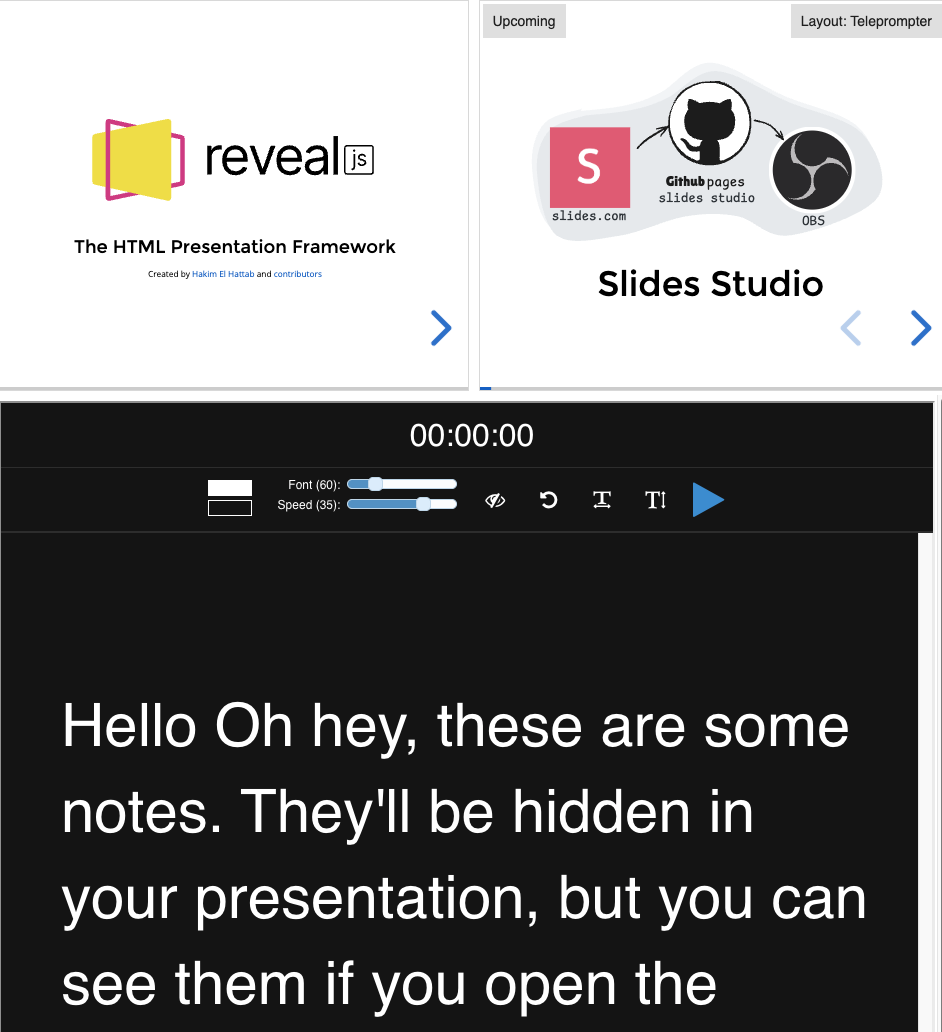
Slides Studio for Slides.com
The Slides Studio Github Page setup tutorial.
Requirements
To use Slides Studio the following pieces are required.
-
Open Broadcast Studio(OBS)
- OBS is a free and Open Source software for video recording and live streaming.
- Download from obsproject.com
-
A Reveal js slide deck
- example slides.com deck, https://slides.com/uuoocl/deck-48ea10
Optionally, create a Slides.com account ($) to create your own presentations.
Configure OBS:
Import the Slide Studio Scene Collection
- Download the Slides Studio OBS Scene Collection download link.
- In OBS Import the Slides Studio OBS collection
a. On the file menu click, "Scene Collection" -> "Import"
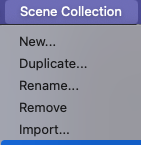
- Select the Scene Collection.
a. "Scene Collection" -> "Slides.com_Collection"
Enable the OBS WebSocket Server
- On the file menu click, "Tools" -> "WebSocket Server Settings"
- Check the "Enable WebSocket server" option
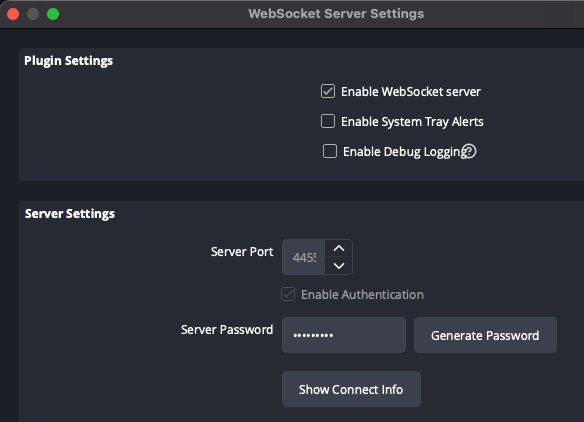
- Click the "Show Connect Info" button to view the Server Password.
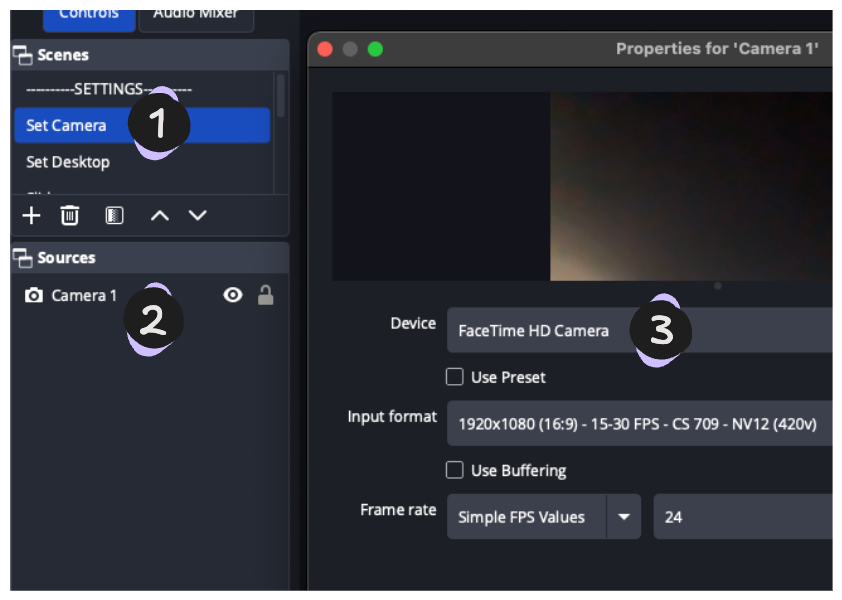
Select a Camera
- Select the Scene named "Set Camera"
- Double click the Source named "Camera 1" to open the source properties window
- Use the "Device" drop down to select a camera.
Slide Studio Settings
Connect Slides Studio and OBS
Complete the Slides Studio connection form.
Slides Deck
- Enter a Slides.com presentation link
example, https://slides.com/uuoocl/deck-48ea10
Open OBS
If OBS is already open, then
- enter the port number and password.
- click the "connect" button
Add Slide Control Tags
Choose the "Studio" layout
After connecting to the OBS WebSocket server, the Slide Studio view will appear.
-
Use the "Layout" button and select the "Studio" option.
-
Enter a name in the "slide deck name" field to save the settings
- press the "Load" button to retrieve previously saved setting from local storage
-
For each slide, click the cell to choose an available option.
- Slide Position: where the slides appears on the scene
- camera Position: where the Camera appears on the scene
- Camera Shape: change the camera from a rectangle to a different shape
- Scene: OBS scenes that begin with "Scene"
Navigating Slides
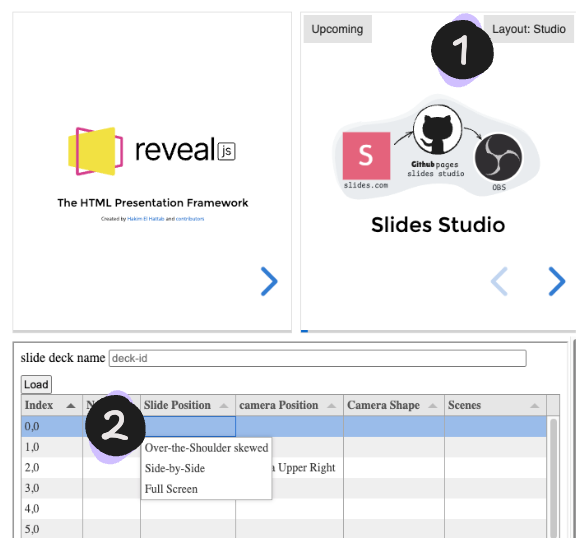
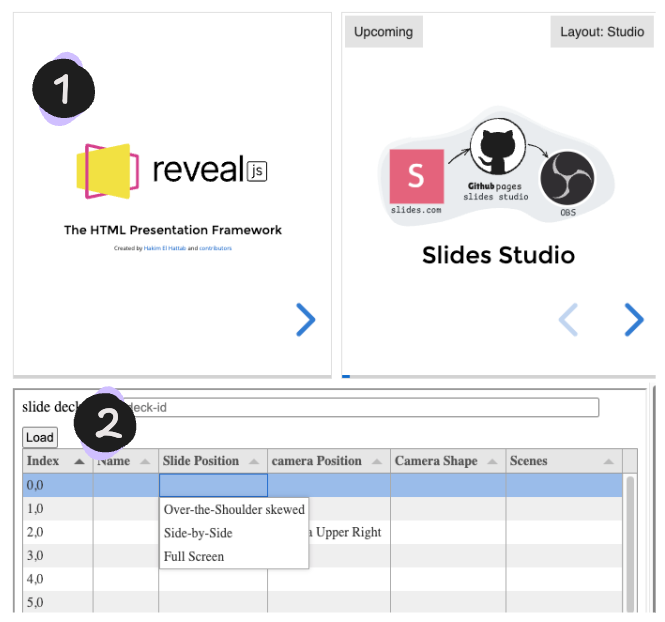
1. Current Slide navigation
Click the ">" button to advance to the next slide, or the "<" button to return to the previous slide.
The keyboard keys left and right arrow keys can navigate the slides forward and back.
2. Slide tags navigation
Click on the slide number in the "Index" column to jump to a specific slide.
Press the keyboard "spacebar" key to advance to the next slide.
Teleprompter
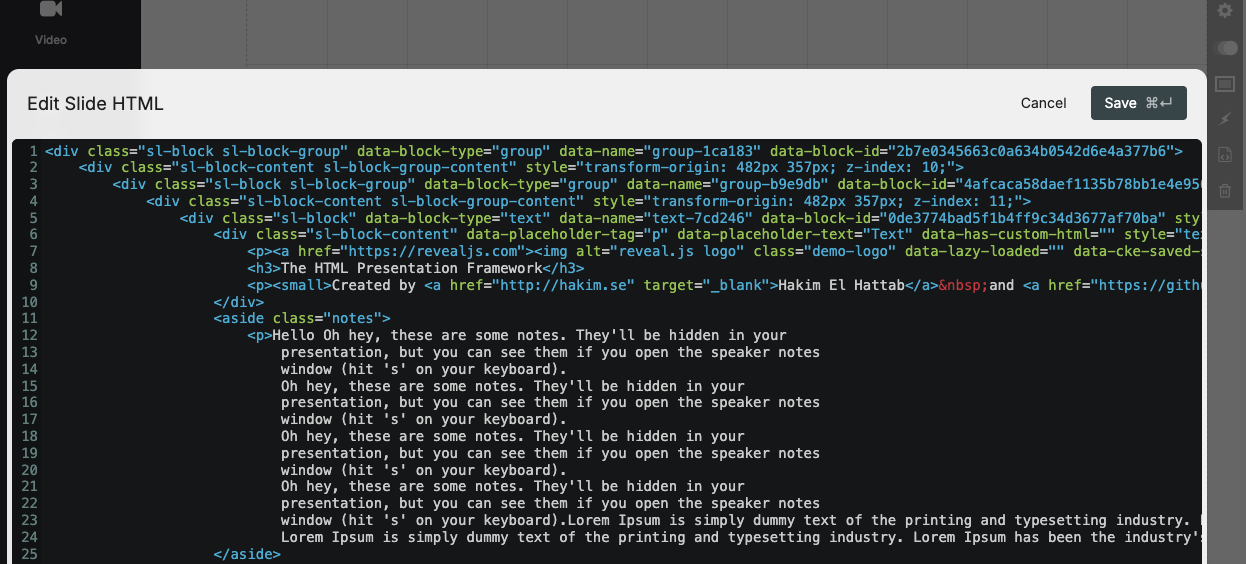
Add notes to slide
Slides Studio uses the Reveal.js notes format. Notes are defined by appending an <aside> element to a slide as seen below .
Adjust teleprompter settings
Click the "Layout" button, then select "Teleprompter".
The teleprompter view can set the font size, scroll speed, flip text and play/pause