OSC
Drive OBS events with Open Sound Control (OSC) messages.
- Set the number of connected clients
- Send messages to Text sources.
- Return messages to clients.
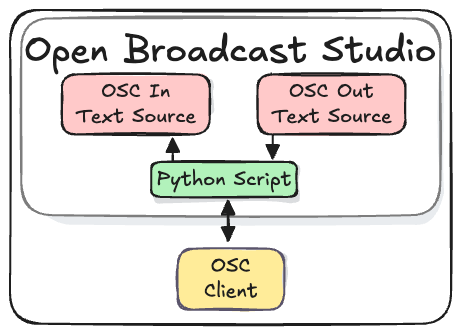
OSC messages are received from a client. A client could be an app, like ZoomOSC, or hardware, like an OBSBOT PTZ camera.
The User configures the OSC server and creates a text sources to store and display incoming and outgoing messages.
A text source is used because changes to a text source are easily observed by WebSocket clients. When a text source is updated an "InputSettingsChanged" event is sent to webSocket clients. See the Processing ZoomOSC Messages tutorial for a complete example.
Setup
Install Python dependencies
This script uses the Python OSC Library.
- Open the Terminal app
- Enter the
pipcommand
python3.11 -m pip install python-osc
Add the OSC io Script to OBS
The "OSC io" script and accompanying OBS Collection can be found on Github.
python osc io repo
Import the OSC io OBS Collection
- Download the OSC io Collection
- In OBS, from the menu select
Scene Collection > Import - Import the collection
- Choose the collection
Scene Collection
Add the OSC io Script
- Download the OSC io Script
- In OBS, from the menu select
Tools > Scripts - Click the
+ Add scriptbutton
Configure OSC Server and Clients
Configure OSC Server
The OSC Server receives and sends messages from the OSC clients.
The OSC Server default is configured to only run on the local machine.
Server IP Address: 127.0.0.1
Server Port: 12345

Add OSC Clients
Set the number of clients 1 to 10, then configure each client.
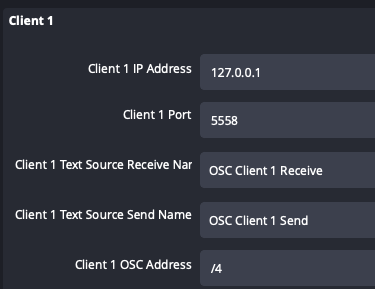
Client IP Address: 127.0.0.1
Client Port: 12345
Client Text Source Receive Name: Create a text source for incoming messages
Client Text Source Send Name: Create a text source for outgoing messages
Client OSC Address: enter an OSC address if necessary