Python
Python is a programming language that will need to be installed for the many of the tools in this garden to work.
Install Python
OBS supports python version 3.11 . It's important that Python 3.11 is installed. Newer versions are available, but these newer versions may not work.
- Download the installer for your OS
- Install Python 3.11 to the default location
Install Python dependencies
Some scripts in the garden use libraries. Enter the following command to install all the libraries
- Open the Terminal app
- Enter the
pipcommand
python3.11 -m pip install python-osc python-rtmidi simpleobsws pynput
Configure OBS Python Settings
OBS needs to know where Python is installed. Use a terminal app to find the Python install path. Then enter the Python install path in OBS
- Open the Terminal app
- Mac Terminal: Enter the 'which' command
which python3.11
Response
/Library/Frameworks/Python.framework/Versions/3.11/bin/python3.11
2. Windows Command Prompt: Enter the 'where' command
where python
Response
C:\Users\<YourUsername>\AppData\Local\Programs\Python\Python3.11
The default install path will be returned
-
Use the mouse to highlight the path
-
Right click and select "Copy"
-
Open OBS
-
From the menu bar select
Tools > Scripts -
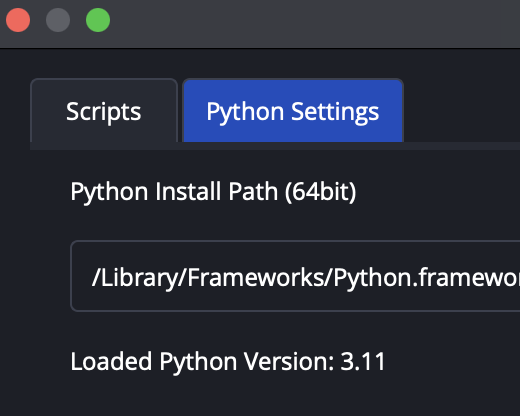
In the Scripts window switch to the
Python Settingstab -
Click the "Browse" button
-
Use the keyboard shortcut
cmd + shift + G -
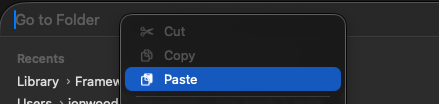
In the pop-up, right click in the "Go To Folder" input field
-
select paste
-
Press "Enter"
-
Click the "Open" button
The Pythons settings should now display "Loaded Python Version: 3.11"