Open Broadcast Studio
Install OBS
Download the installer from obsproject.com
Open OBS
Some of the UUinsome scripts use the OBS webSocket Server.
To configure the webSocket server use the "open obs" page.
https://uuoocl.github.io/set-websocket-server/open-obs.html
download these shortcuts to automate opening OBS
Open OBS with Debug mode enabled
Open OBS with Debug mode disabled
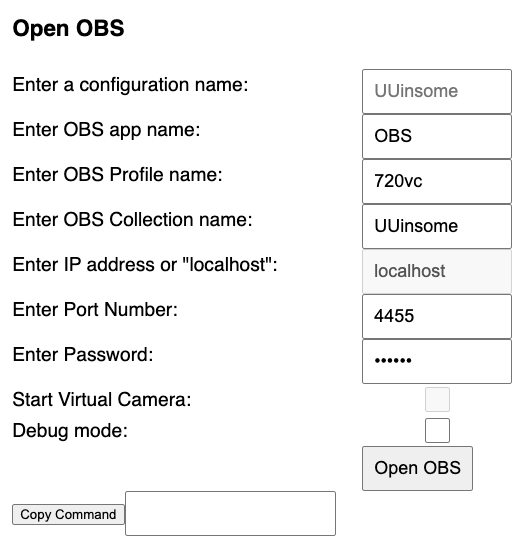
Configure OBS open settings
Configuration name = give the configuration a name that can be reused
OBS name = default set for macOS to "OBS", change to the full path in windows
Profile Name = Enter an OBS video profile
Collection Name = Enter an OBS Scene Collection
WebSocket Server Port = Enter an available Port number. OBS default 4455. The range 49,152 - 65,535 is recommended
WebSocket Server Password = enter a password of your choosing
Debug Mode = check to debug browser source. debug page http://localhost:9222/
If the macOS shortcuts are imported, press the "Open OBS" button.
Otherwise press the "Copy Command" button. Open a command line terminal and paster the OBS open command
Test the WebSocket Connection
Press the "Connect" button to connect to the OBS webSocket Server.
The button will turn green if the connection is successful.